Getting started
Navigating the dashboard
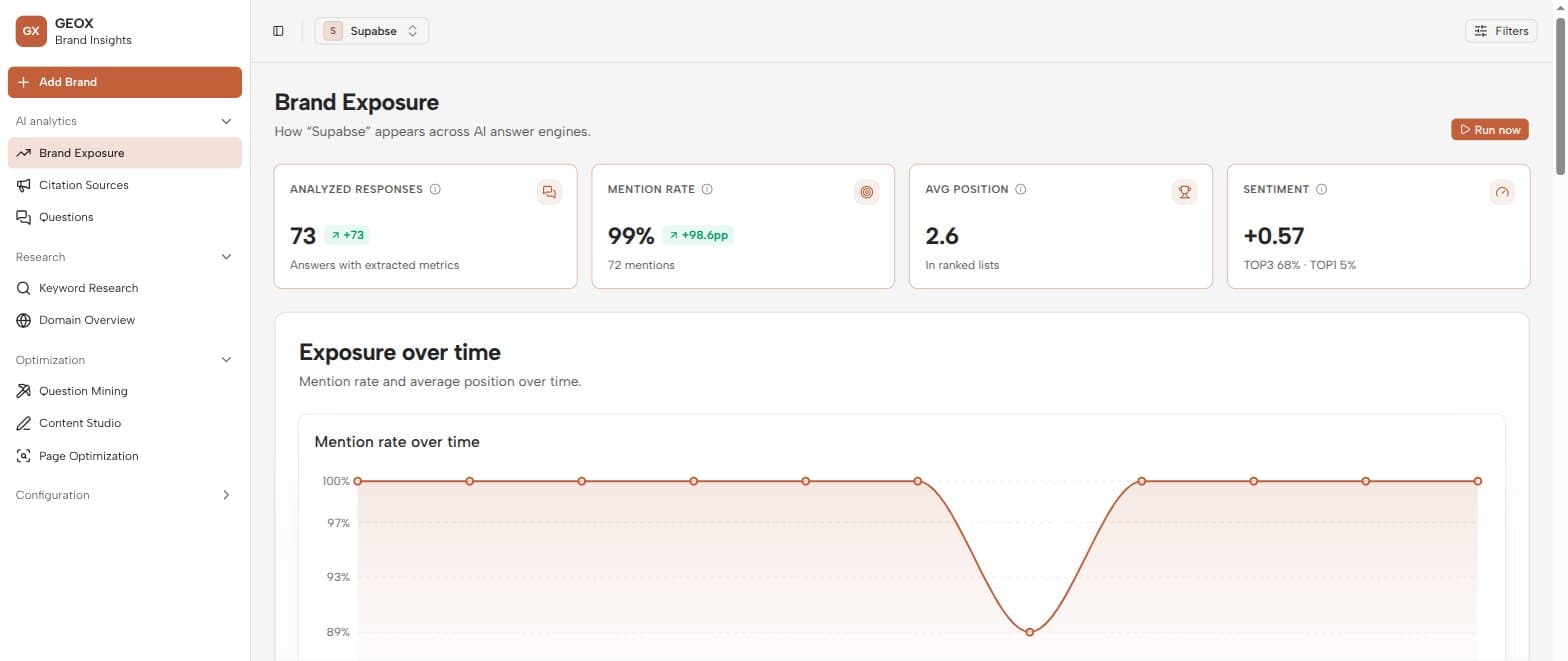
Two pieces of chrome frame every page: the sidebar on the left, and the top bar whose brand selector and filters scope everything you see.
The top bar
From left to right:
- Brand selector — a searchable dropdown to switch the active brand (or add one inline). Every page shows data for the selected brand only.
- Run status — shows collection runs currently in flight.
- Alerts bell — unread-count badge; opens recent alerts with a View all alerts link.
- Filters — one popover holding the date range (Last 7 / 30 / 90 days or All time; default 30 days) and the platform (All platforms, or a single provider). A Reset filters action appears whenever you’re off the defaults.
The two filters apply to every analytics page at once — change them once and Brand Exposure, Citation Sources, and Questions all update together.
The sidebar
The + Add Brand button at the top opens the guided brand setup. Below it, pages are grouped by what they’re for:
| Group | Pages |
|---|---|
| AI analytics | Brand Exposure (KPIs, trends, competitors, gaps), Citation Sources (cited domains + outreach), Questions (every stored answer). |
| Research | Keyword Research (real search volume/CPC/difficulty), Domain Overview (any domain’s organic footprint). |
| Optimization | Question Mining, Content Studio, Page Optimization — the discover → create → test loop. |
| Configuration | Brands, Tasks, Progress Report, Settings. |
The sidebar footer shows your credit usage and the account menu (theme toggle, documentation, sign out).
Pages you reach from within other pages
- Alerts — from the bell in the top bar, or Settings → Alerts.
- Brand Knowledge — from Settings → Brand knowledge base.
- Question detail — click any question row (on Questions, Question Mining, or Brands) to open its full answer history.
When a page looks empty
Almost every page needs two things before it has data: a selected brand, and at least one completed collection run. If you see a “select or create a brand” prompt, use the top-bar selector; if you see “run a collection”, press Run now and give it a moment.